Skip to content

From sign-up to your first Flits guest

From "it's quiet" to a full table in a few taps. Everything happens in the app your guests already use: no separate system.
Download Flits

Steps

  1. 1

    Step 1

    Download Flits

    Flits is free on the App Store. Already using Flits as a guest? Then just use the same account.

  2. 2

    Step 2

    Profile → "Sign up your business"

    In the app, open Profile and tap Sign up your business. You choose your role (owner or manager) and confirm your mobile number once with a text message code. We use that number to reach you if there's an issue with a deal or payout.

    Then you search for your business by name. Address, phone number, website and opening hours are filled in for you; you check every field and place the pin in the right spot, for example at the entrance. Not found? Then you enter everything yourself.

    Has someone already signed up your business? Then you'll see "This business already has an account — request access." The owner receives your request.

  3. 3

    Step 3

    KvK and location verification

    Enter your KvK number (Dutch Chamber of Commerce). We retrieve your registered name, branch number and address, and check that your business is in hospitality or the sale of food. You also enter your VAT number and your billing email address.

    Next, you show that you really belong to this location. There are two ways; the app shows which one is available to you:

    Code at your business email (instant)
    Does your business have its own website? Enter an email address on that domain, for example info@yourbusiness.nl. You receive a 6-digit code; once you enter it, you're verified straight away. Free webmail such as Gmail, Hotmail or Outlook doesn't count.

    Shopfront photo (within 1 working day)

    1. The app gives you a 4-character code. Write it in large letters on paper.
    2. Using the camera in the app, take a photo of your shopfront with your business name and the paper in view.
    3. You need to be within 100 metres of your address.
    4. We check the photo, usually within 4 working hours and within 1 working day at the latest.

    While verification is in progress, you can set everything up and schedule deals. You can go live as soon as you get the notification: "Your business is verified. You can go live! ⚡"

  4. 4

    Step 4

    Connect payouts with Stripe

    For takeaway deals, guests pay upfront in the app. That money reaches you via Stripe. You connect your business in a secure Stripe screen: details of the authorised representative, an identity check and your IBAN. Stripe carries out the legally required checks.

    In the app you see the status: Pending, Active or Action required. Table deals work without the connection; takeaway deals only once your connection is active.

  5. 5

    Step 5

    Profile and economics

    You fill in your location profile step by step, with a progress bar:

    • Photos: at least 3 (atmosphere, a dish, your shopfront), at least 1200 pixels wide. The app gives tips on lighting.
    • Type and cuisine, price level and facilities.
    • Capacity: tables, seats inside and on the terrace, typical table size.
    • Opening hours with kitchen closing time and exceptions.
    • Economics (visible only to the owner and manager): average spend per person, food cost (default 30%), cannibalisation (default 20%) and the average length of stay at lunch and dinner (default 90 and 120 minutes). The decision helper calculates with these.
    • Allergen library: the products that often appear in your takeaway deals, with their 14 EU allergens. Enter them once, then reuse them.
    • Description: up to 300 characters.

    Done? Then your trial starts: 30 days of Plus for free. You'll receive an email to choose your plan and arrange payment. You can invite your team right away, or later.

  6. 6

    Step 6

    Your first deal, with the decision helper

    For your first deal, the app suggests a template that suits your type of business and the time of day. Tips guide you through every step.

    After that, it works like this: set the busyness meter to Quiet, tap ⚡ Flits now, pick a template and hold the button. The decision helper shows in advance whether the deal pays off.

    Screenshot annotations

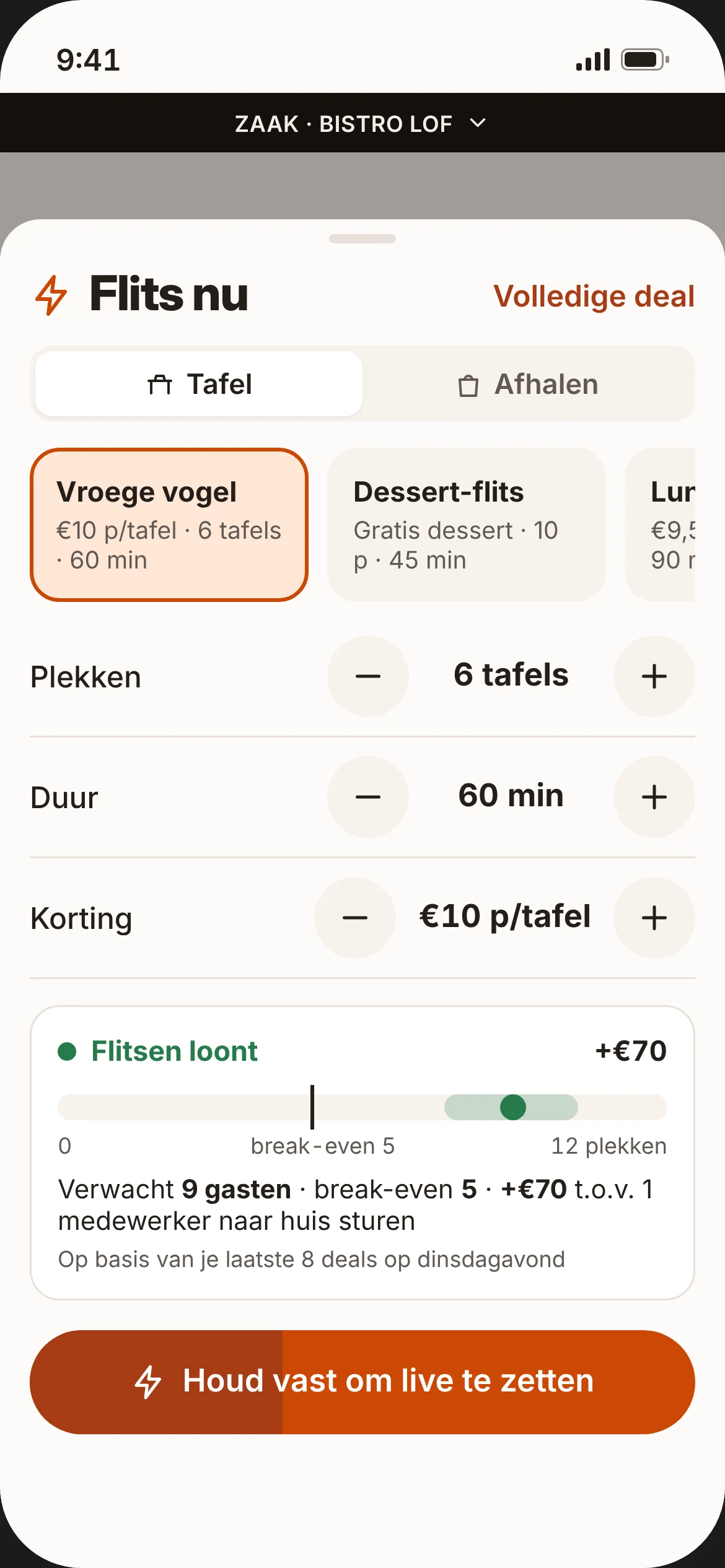
    The Quick Flits screen in business mode with the decision helper on green
    1. 1

      Table / Takeaway — choose which kind of deal to put live.

    2. 2

      Templates — your most recently used templates are at the top. One tap.

    3. 3

      Quick adjustments — seats, duration and discount.

    4. 4

      Tables free until — pre-filled with the time it usually gets busy at your place. That way your deal ends before your busy period.

    5. 5

      Uses leftover stock — using ingredients you'd otherwise throw away? Switch it on (10%, 25% or 50%).

    6. 6

      Decision helper — expected number of guests, green from, and the expected extra profit, with the upper limit when full. Green, orange or red.

    7. 7

      Calculated with — shows the assumptions the app uses, for example "Flits guests spend 5% less · ends before your busy period at 19:30".

    8. 8

      Hold to go live — so you never put a deal live by accident. On red, the app first asks: "Go live anyway?"

    On orange or red, the suggestions appear right below as buttons, such as "+2 tables", a smaller discount or "Start takeaway deal".

  7. 7

    Step 7

    Scanning

    A guest comes in and shows their code. Tap SCAN in the middle of the bottom bar and point your camera at the QR code, or tap Enter code.

    Screenshot annotations

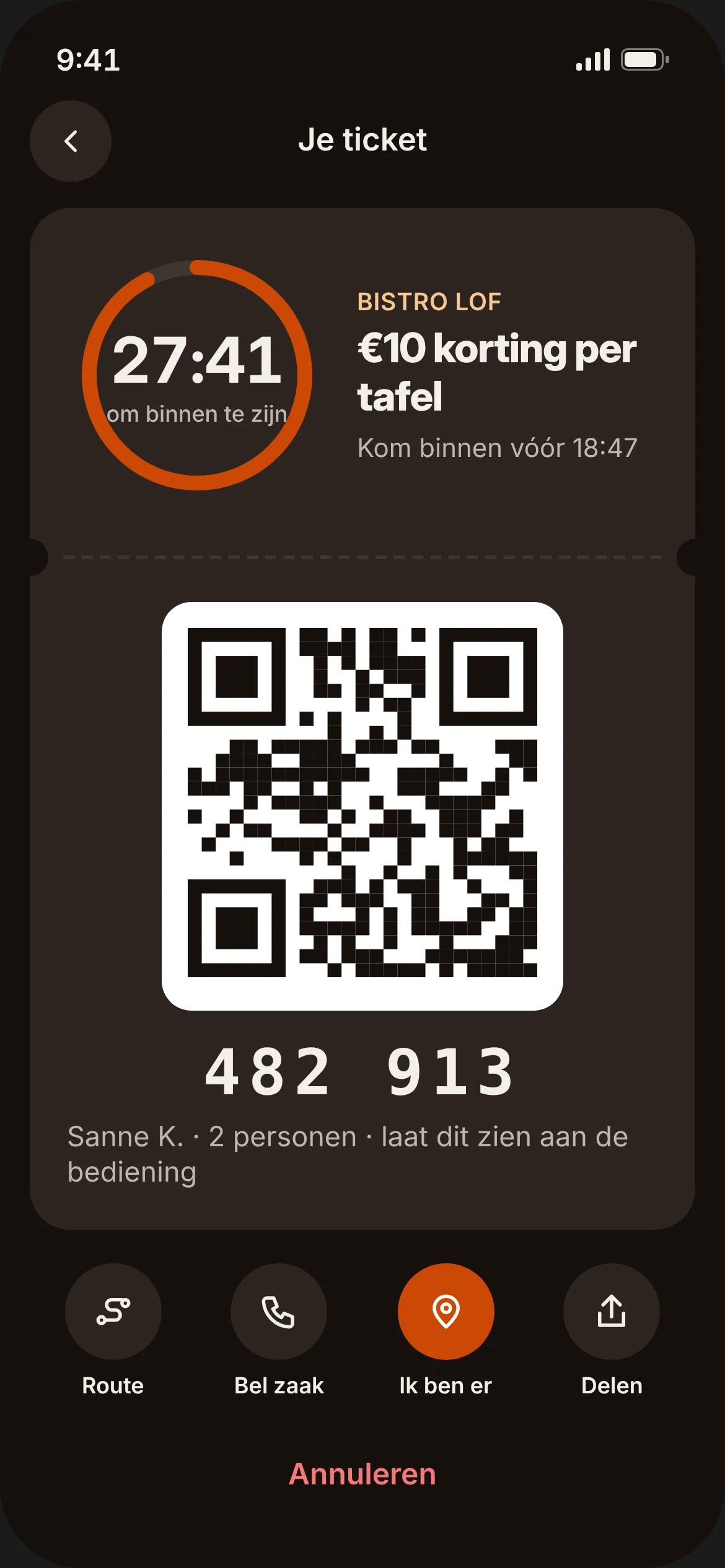
    The ticket the guest shows, with a QR code and a 6-digit code
    1. 1

      QR code — scan it with the SCAN button in Flits.

    2. 2

      6-digit code — scanning not working? Type this code in via "Enter code".

    3. 3

      Name, group size and deal — so you see straight away who the ticket is for.

    After scanning, you see in large text what to do:

    • Table deal: name, number of people and the discount. More or fewer people than claimed? Adjust the number. The till helper gives you the exact discount line for your till, for example "FLITS €10.00 table discount — ref 482913", with a copy button.
    • Takeaway deal: name, what was ordered and the order number. Tap Handed over. It has already been paid: don't ring it up as a new sale, record it as a Flits sale.

    For takeaway, a guest can also swipe in their own app and show you the moving confirmation screen. The order then automatically shows as "Collected (by guest)" on your side.

    On an iPad, switch on counter mode: on the left a scanner that is always on, on the right your live deals, expected guests and takeaway list. No internet? The scanner keeps working and syncs as soon as you're back online.

  8. 8

    Step 8

    Payouts and insights

    Takeaway payments are paid out every week on Monday via Stripe, minus €0.79 per order. In the app you see for each payout: takeaway revenue − takeaway fees − refunds = net, broken down per order, plus a monthly statement (PDF) for your bookkeeping.

    After every deal you see the actual result, for example: "9 Flits guests · +€122 extra profit". Enter the actual revenue from your Flits tables and the app calculates with that, learning how much your Flits guests really spend.

    Screenshot annotations

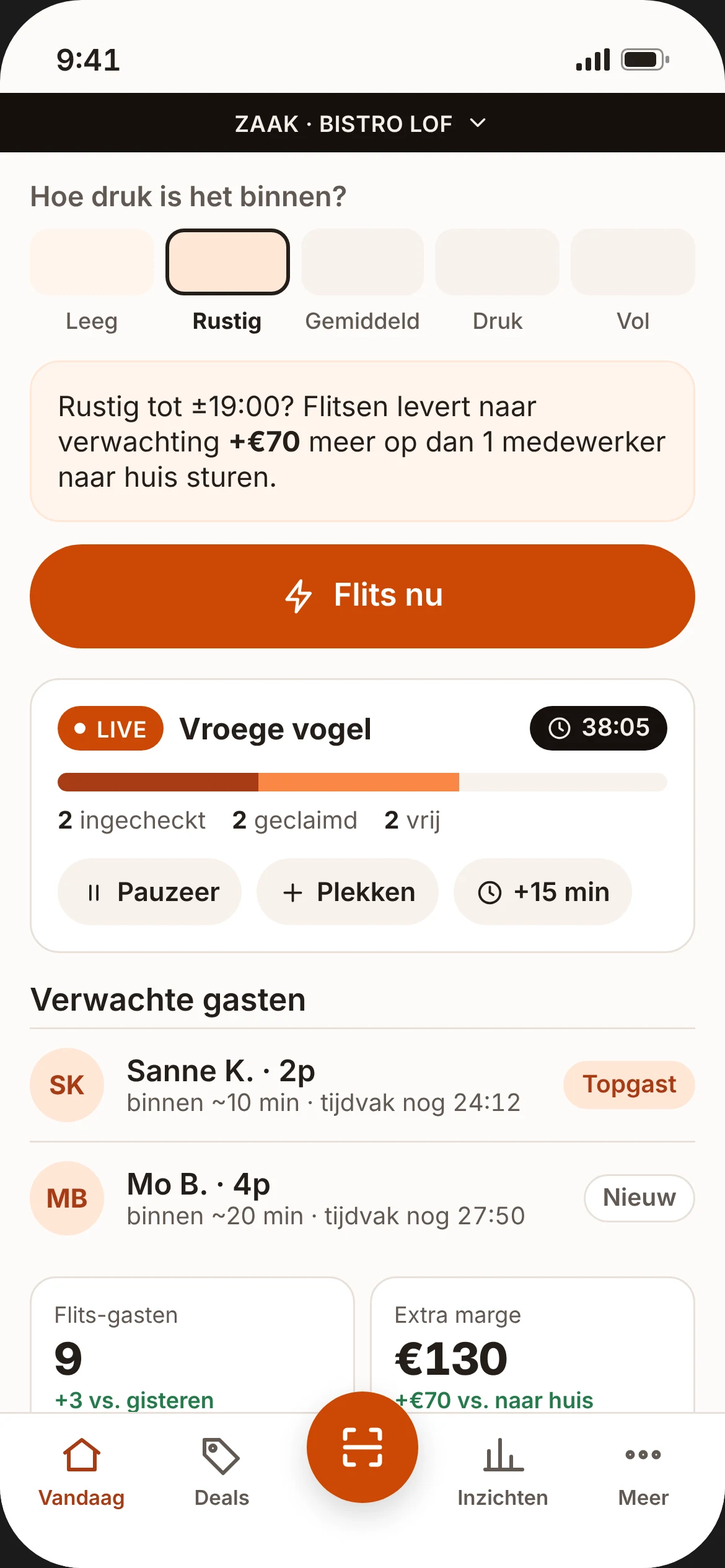
    The Today screen in business mode with the busyness meter, live deals and today's tiles
    1. 1

      Busyness meter — one tap: Empty, Quiet, Average, Busy or Full. Separate for inside and the terrace.

    2. 2

      ⚡ Flits now — opens Quick Flits.

    3. 3

      Live deals — claimed, checked in and available; for takeaway: sold, collected and stock. Pause, add seats or extend by 15 minutes.

    4. 4

      Expected guests — who's coming, how many people and when.

    5. 5

      Takeaway list — orders per collection window. Swipe to *Handed over*.

    6. 6

      Today tiles — Flits guests, takeaway orders, extra profit and your deals this month.

    Every month you receive a report by email.

See Flits in 90 seconds

Read the video transcript
  1. Tuesday, five o'clock. Your place is half empty and your staff are ready to go.
  2. Do you send someone home? On the day itself, that saves almost nothing on wages.
  3. With Flits, you set the busyness meter to quiet. The app instantly works out what a deal would earn.
  4. Pick a template. The decision helper shows how many guests you can expect and what the deal is expected to earn you extra.
  5. Hold the button. Your deal is live, in fifteen seconds.
  6. People nearby get a heads-up and claim a table.
  7. Your team scans the code. The app gives you the exact discount line for your till. Done.
  8. Food left over? Sell it with a takeaway deal. The guest pays upfront; you're paid out every week.
  9. Every quiet hour earns more than it costs. Download Flits and try it free for 30 days.

Staff guide (PDF, 1 A4 page)

Get your team ready

Print this guide and put it up by the till or the counter.

Flits at the counter — how it works

You use Flits in business mode: at the top of your screen is the dark bar "BUSINESS · {your business name}".

1. Scanning

  • The guest shows the code in their Flits app.
  • Tap SCAN at the bottom and point the camera at the QR code.
  • Too dark? Switch on the torch.

2. Entering a code

  • Scanning not working? Tap Enter code and type the 6-digit code shown with the QR code.

3. Table deal: giving the discount

  • ✅ You see the name, the number of people and the discount.
  • More or fewer people than claimed? Adjust the number with − or +.
  • Enter the discount in the till using the till helper, for example "FLITS €10.00 table discount — ref 482913". Tap copy if your till supports it.
  • The guest pays the rest with you as usual.

4. Handing over takeaway

  • ✅ You see the name, what was ordered, "paid" and the order number (e.g. #4821).
  • Hand over the order and tap Handed over.
  • Don't ring it up as a new sale. It has already been paid through Flits. Record it as a Flits sale.
  • Is the guest showing a moving confirmation screen in their own app? Then they've swiped themselves and the order already shows as "Collected". Hand it over; you don't need to scan anything.
  • The takeaway list is on the Today screen. You can also swipe to Handed over there.

5. If you see ⚠️ (orange: take care)

  • "Belongs to another location" — the code is for a different business. Don't redeem it.
  • "Already redeemed at 17:12" — this code has already been used. Don't give the discount or hand over the order again. Not sure? Get your manager.
  • "Window expired 4 min ago — redeem anyway?" — only a manager can approve this, up to 15 minutes after the window.
  • "Collection window only starts at 16:30 — hand over now?" — the guest is early. Decide whether to hand it over now, or ask the guest to come back from the start time.

6. If you see ❌ (red: don't redeem)

  • Invalid, cancelled or refunded — don't give a discount and don't hand anything over.
  • Explain kindly that the code is not (or no longer) valid. The guest can contact Flits support in their app.
  • Not sure? Get your manager.

7. Guest doesn't show up

  • Only once the arrival window has passed can you swipe the expected guest on Today to Didn't show.

No internet? The scanner keeps working and syncs as soon as you're back online.

Questions? Ask your manager, or open More → Help & support in the app.

Ready for your first Flits guest?

Sign up your business in the app and try Flits free for 30 days. No commission, no set-up fees. Rather talk first? A City Lead will call you back within 1 working day.